
Warning, extremely old Photoshop tutorials ahead!
These Photoshop tutorials are extremely old, we're talking around 1999 here, so we can't even remember what version of Photoshop
that was. So rather than get rid of them we thought we'd help out the people that still find them useful and celebrate our web design
heritage by keeping them here.
For the keen eyed among you, you can even spot the extremely old HTML from back in the day when web design was a little bit simpler (Mmmm, font tags). No responsive web design here!

 |
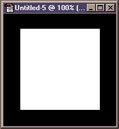 |
Start with a new RGB image. The size doesn't matter. Click on the channels palette. If it's not visible go to Windows > Show Channels. Create a new channel. Click on the marquee tool and draw a rectangle. Fill it in white. Deselect by clicking off the rectangle or CRTL+D. |
 |
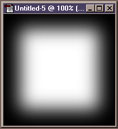 |
Select Filter > Blur > Gaussian Blur and enter 15. |
 |
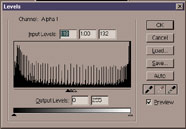 |
Select Image > Adjust > Levels and bring the black and white arrows in to the centre. You can see that the image will get rounder. Click OK |
 |
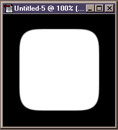 |
Click on the Layer Pallet and Choose Select > Load Selection and choose Alpha 1 or #1. A marquee will appear in the shape that you have just create in the channels pallet. |
 |
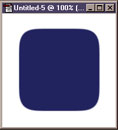 |
Fill it with you favorite colour. |